
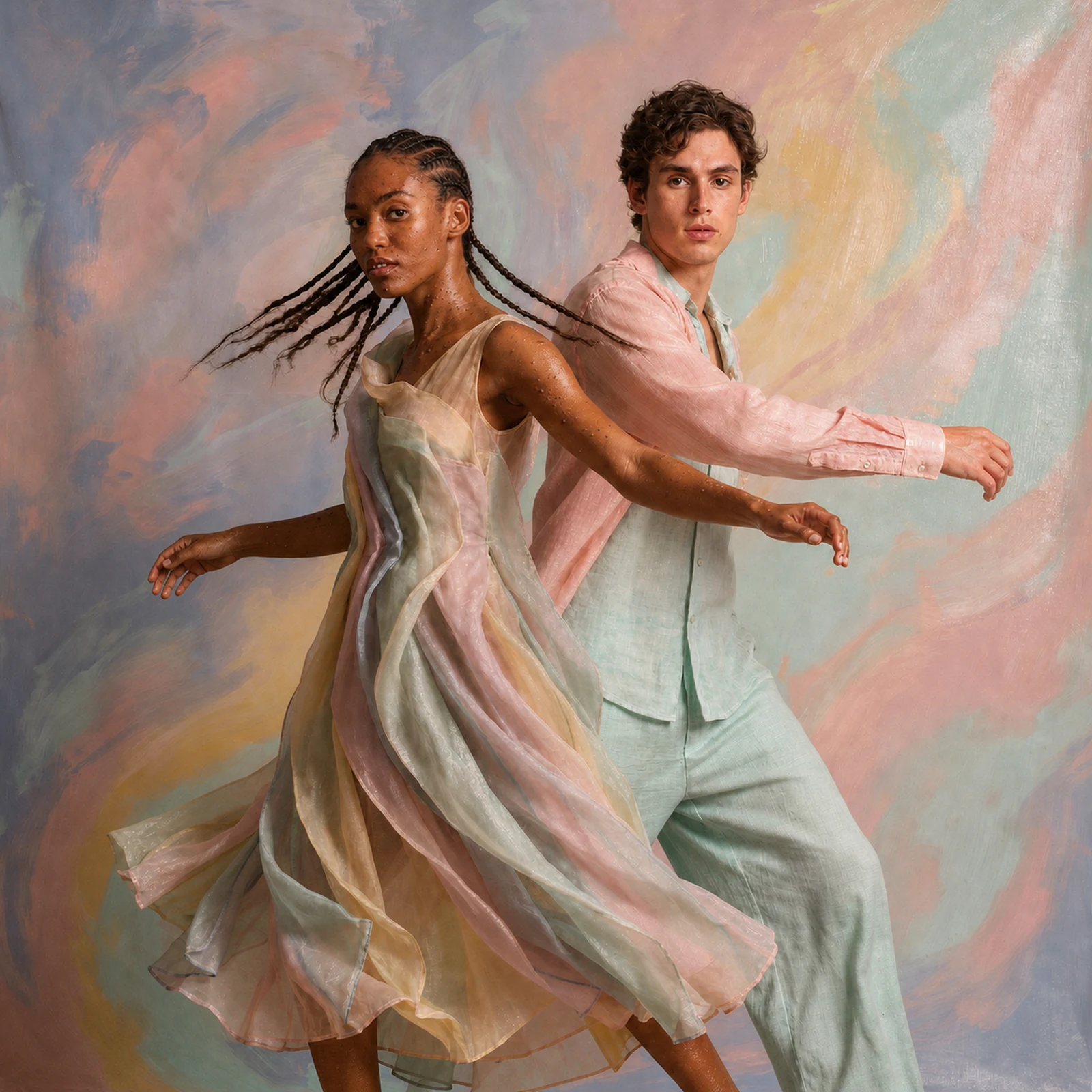
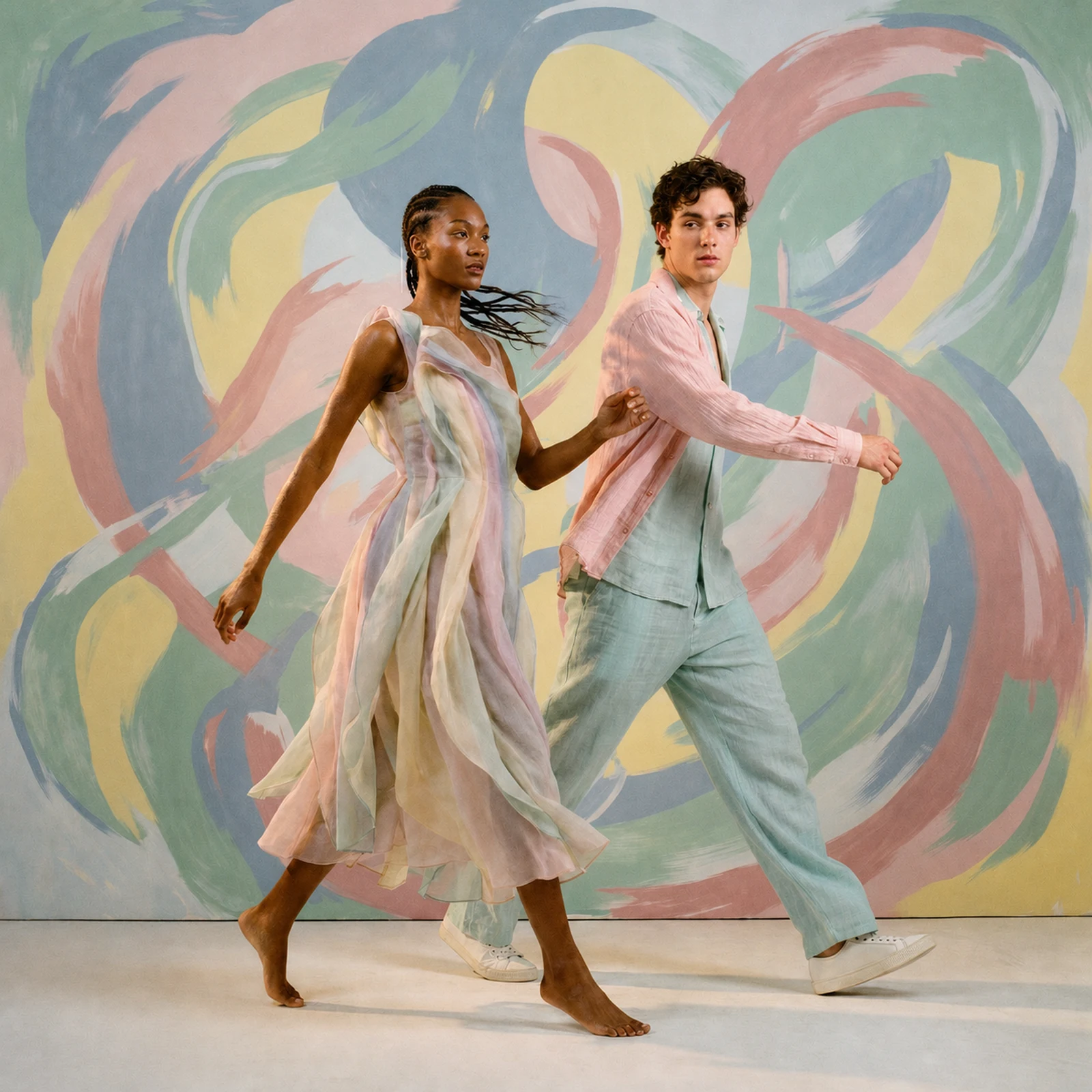
It is a reference.
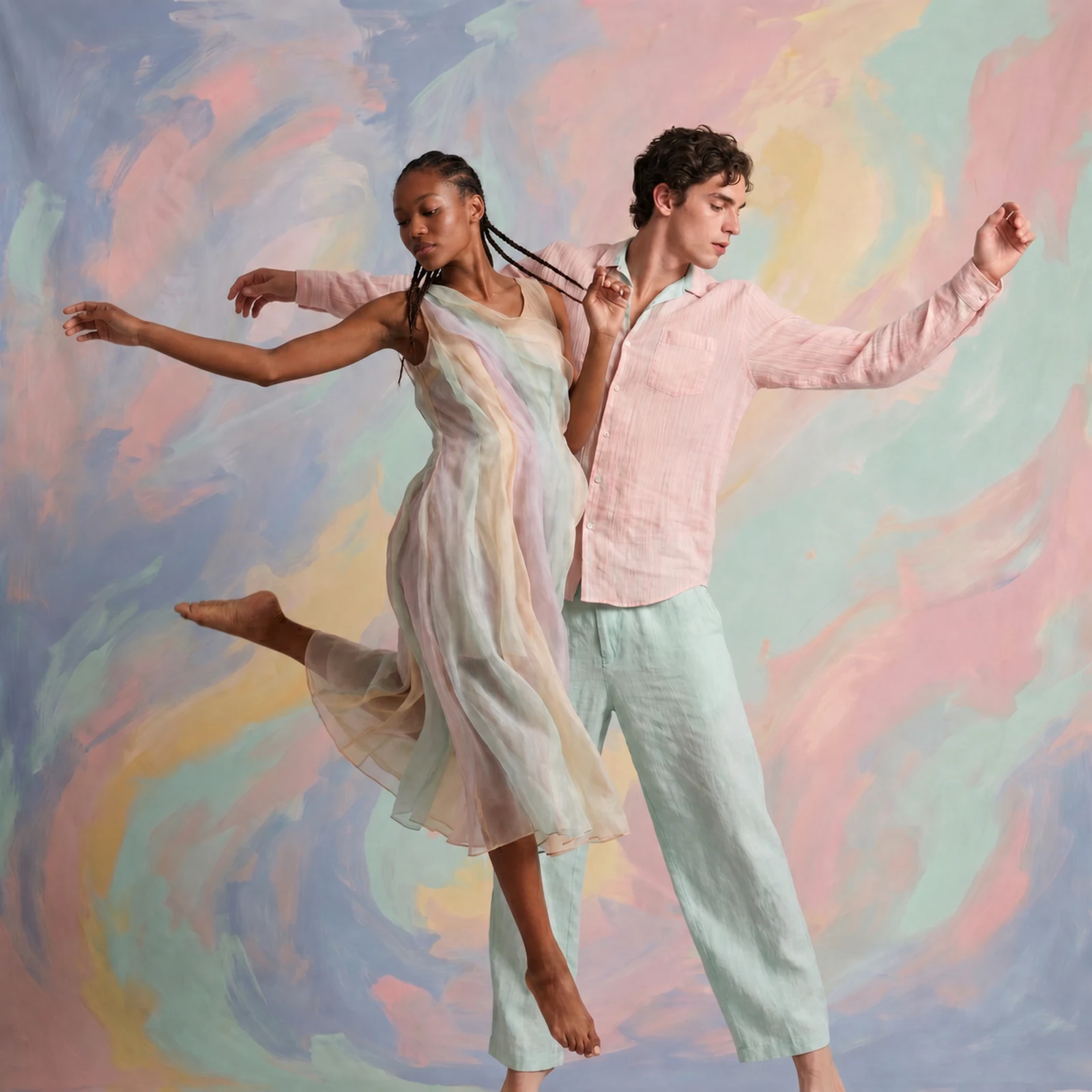
Three directions.
Change the prompt to try another pose or setting using your character references.
Images · Video · Shots
Prepare your art direction, generate your shots and organise your sequence. The project brings together each shot’s references, processing and versions.


Group nodes by shot and reuse shared references through the Hub. Compare versions of a shot without rebuilding the entire project.
Art direction
A reference image and a prompt become a key image. Choose your direction before generating motion.
Change the prompt to try another pose or setting using your character references.
From shot to sequence
The same project takes you from visual exploration to multitrack editing.
Use available local video models, including Wan, LTX Video and MiniMax H3, or Cloud models such as Seedance and Kling. Cloud processing is paid per use; local processing depends on your hardware.
Set priorities, track progress and costs, pause or restart tasks from the project queue. Keep results linked to the right shot.
Select the versions that serve your film, add them to the multitrack edit and adjust cuts and sound.
Project continuity
Consistency tools preserve your choices and references; art direction stays in your hands.
Version your styles, characters, models and seeds. Each shot keeps the chosen revision without silently changing existing shots.
Bring a node from one shot into another. Reuse a set, character or setting and keep your elements connected.
Mark an area with the brush, eraser, rectangle or lasso. SFUMIA creates a non-destructive branch that you can revisit and run again.
Frequently asked questions
This demonstration shows three key images made from references and prompts. They illustrate the art direction stage, before video generation.
Reuse references, style bibles and nodes through Hubs. Compare results and select suitable versions. These tools organise your choices; they do not by themselves guarantee identical results across generations.
No. You pay for available processes as you use them, after seeing their price and confirming the media to send. Track your budget in ProProd.
Project results can be used in the integrated multitrack timeline. Find a preview in the suite’s Editing section.
Generation & projects
From the first references to the timeline, your film stays in the same project.